Menu Bar
The menu bar provides access to all features of QtRvSim. It is divided into standard menus: File, Machine, Windows, Options, and Help.
File Menu
Handles operations related to simulation setup, source files, and the application itself.
 New simulation… (Ctrl+N)
Opens the Pre-sets and ELF File configuration dialog to start a new simulation.
New simulation… (Ctrl+N)
Opens the Pre-sets and ELF File configuration dialog to start a new simulation. Reload simulation (Ctrl+Shift+R)
Reassembles the source code currently in the editor and resets the simulation state (registers, memory, cycle count).
Reload simulation (Ctrl+Shift+R)
Reassembles the source code currently in the editor and resets the simulation state (registers, memory, cycle count).- Print (Ctrl+Alt+P) Prints the contents of the active panel or editor.
 New source (Ctrl+F)
Opens a new editor tab to write a fresh assembly program.
New source (Ctrl+F)
Opens a new editor tab to write a fresh assembly program. Open source (Ctrl+O)
Loads an existing RISC-V assembly source file (
Open source (Ctrl+O)
Loads an existing RISC-V assembly source file (.s) into the editor. Save source (Ctrl+S)
Saves the current editor contents. If previously unsaved, behaves like “Save source as.”
Save source (Ctrl+S)
Saves the current editor contents. If previously unsaved, behaves like “Save source as.”- Save source as Prompts for a filename and saves the editor contents to that path.
 Close source (Ctrl+W)
Closes the current editor tab (prompts to save unsaved work).
Close source (Ctrl+W)
Closes the current editor tab (prompts to save unsaved work).- Examples Opens a submenu of example RISC-V programs bundled with QtRvSim. Selecting one loads it into the editor.
 Exit (Ctrl+Q)
Exits the QtRvSim application.
Exit (Ctrl+Q)
Exits the QtRvSim application.
Machine Menu
Controls simulation execution and machine-specific options.
 Run (Ctrl+R)
Starts continuous execution at the configured speed.
Run (Ctrl+R)
Starts continuous execution at the configured speed. Pause (Ctrl+P)
Halts execution if running.
Pause (Ctrl+P)
Halts execution if running. Step (Ctrl+T)
Executes only one instruction.
Step (Ctrl+T)
Executes only one instruction.- Speed Controls
Set the execution rate when using Run:
- 1 instruction/s (Ctrl+1)
- 2 instructions/s (Ctrl+2)
- 5 instructions/s (Ctrl+5)
- 10 instructions/s (Ctrl+0)
- 25 instructions/s (Ctrl+F5)
- Unlimited (Ctrl+U) – fastest possible speed
- Max (Ctrl+A) – fastest speed, with reduced GUI updates (higher performance)
- Restart Resets registers, memory, peripherals, and counters to state after the last assembly.
- Mnemonics Registers (checkbox)
Toggle register view to show mnemonic names (
ra,sp) instead of raw (x1,x2). - Show Symbol ? to be added ?
 Compile Source (Ctrl+E)
Assembles source code in the editor using the built-in assembler.
Compile Source (Ctrl+E)
Assembles source code in the editor using the built-in assembler. Build Executable (Ctrl+B)
Builds a standalone ELF file using an external RISC-V toolchain (e.g., GCC/Clang).
Build Executable (Ctrl+B)
Builds a standalone ELF file using an external RISC-V toolchain (e.g., GCC/Clang).
Windows Menu
Manages visibility of all simulation panels.
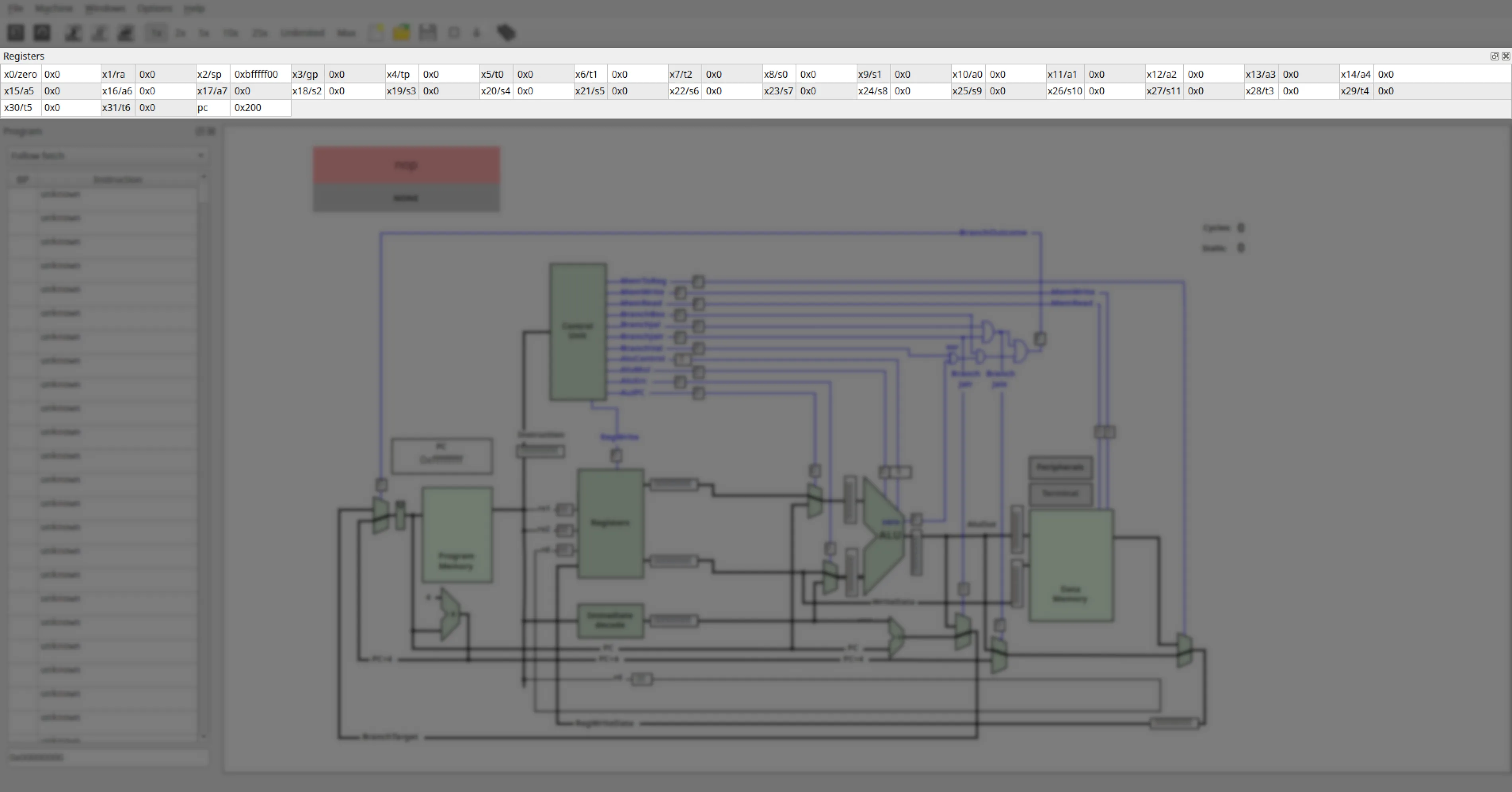
- Registers (Ctrl+D) – Register state viewer.
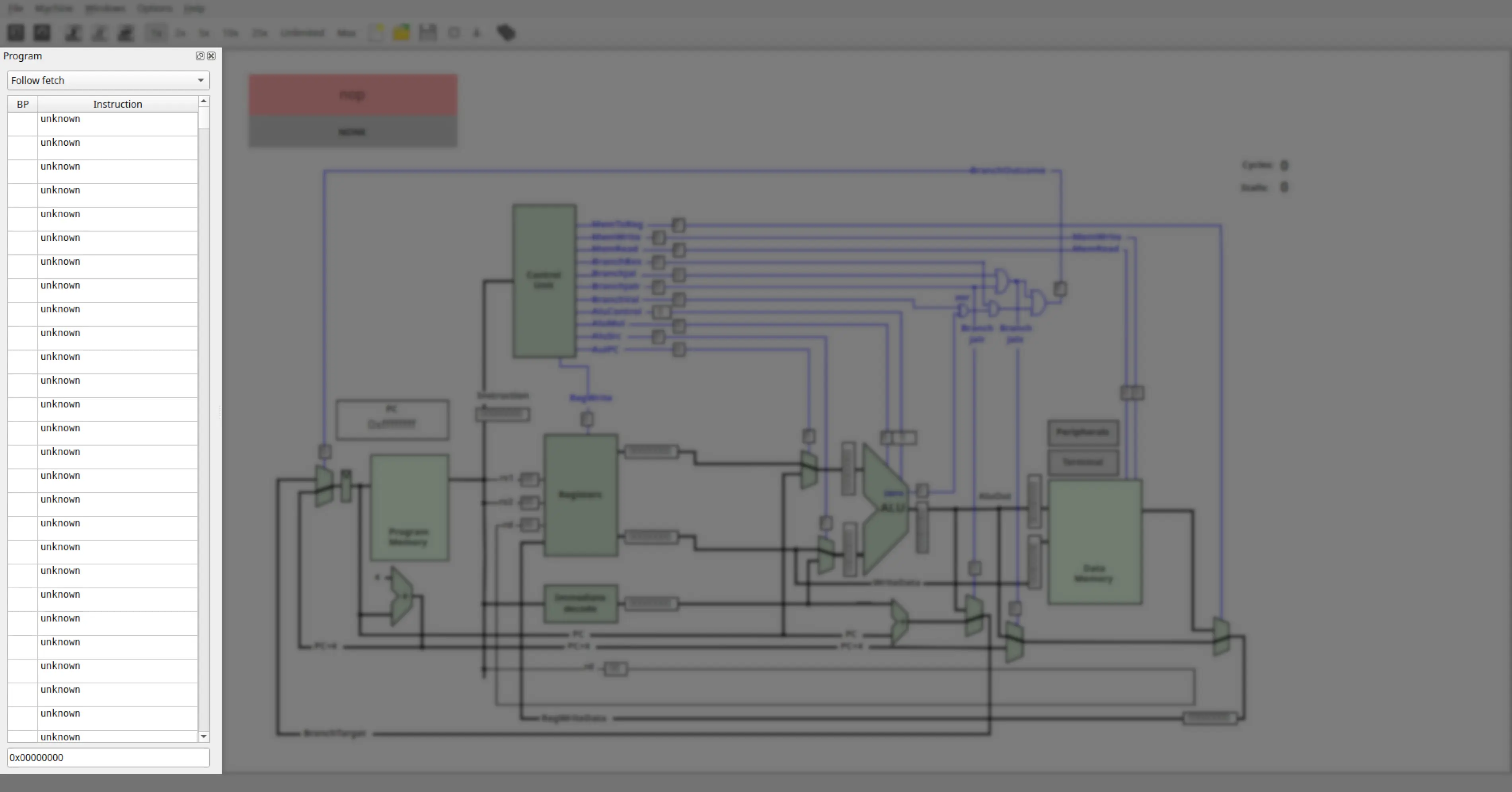
- Program (Ctrl+P) – Code view with current instruction highlighting.
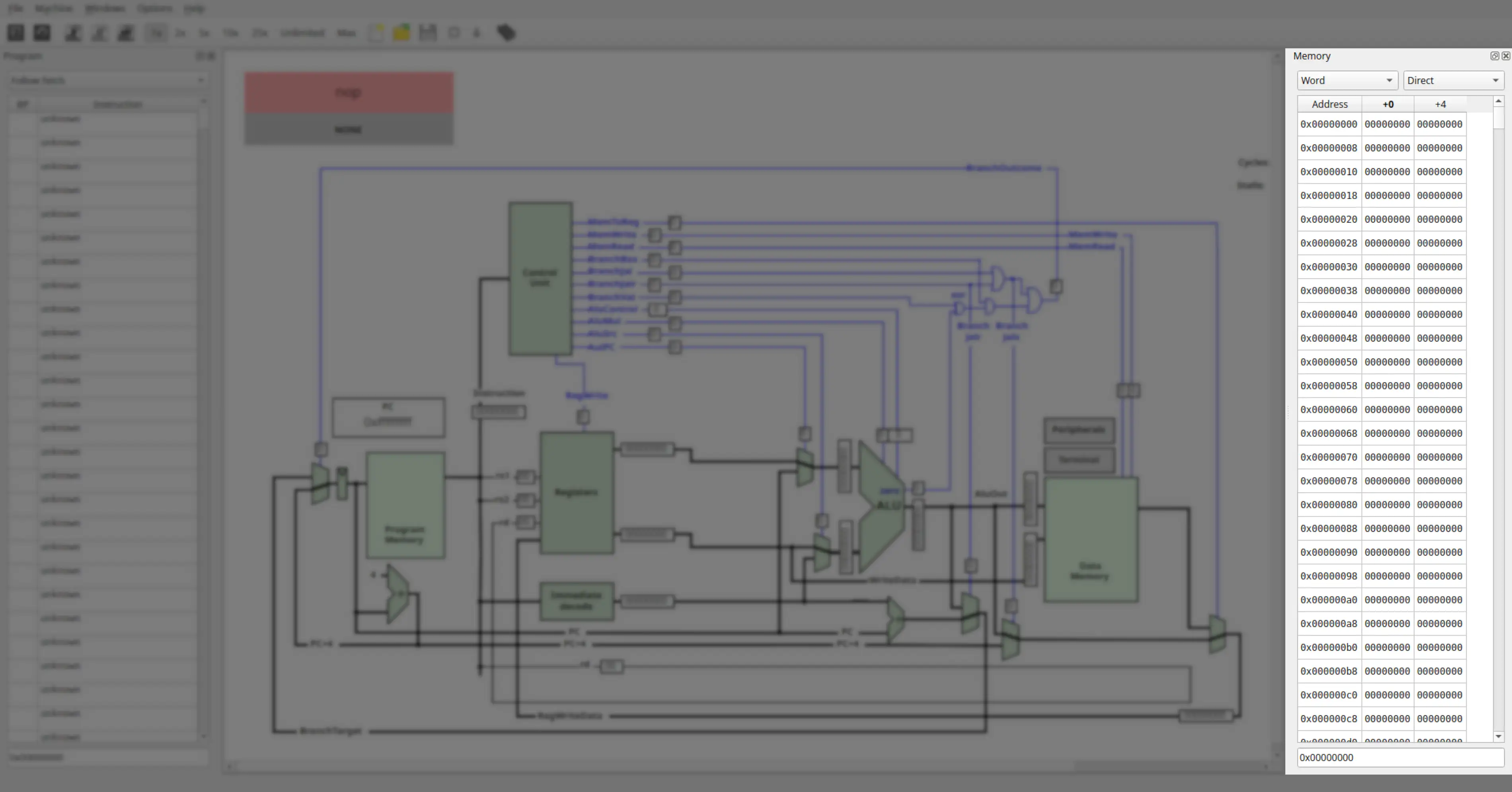
- Memory (Ctrl+M) – Memory contents.
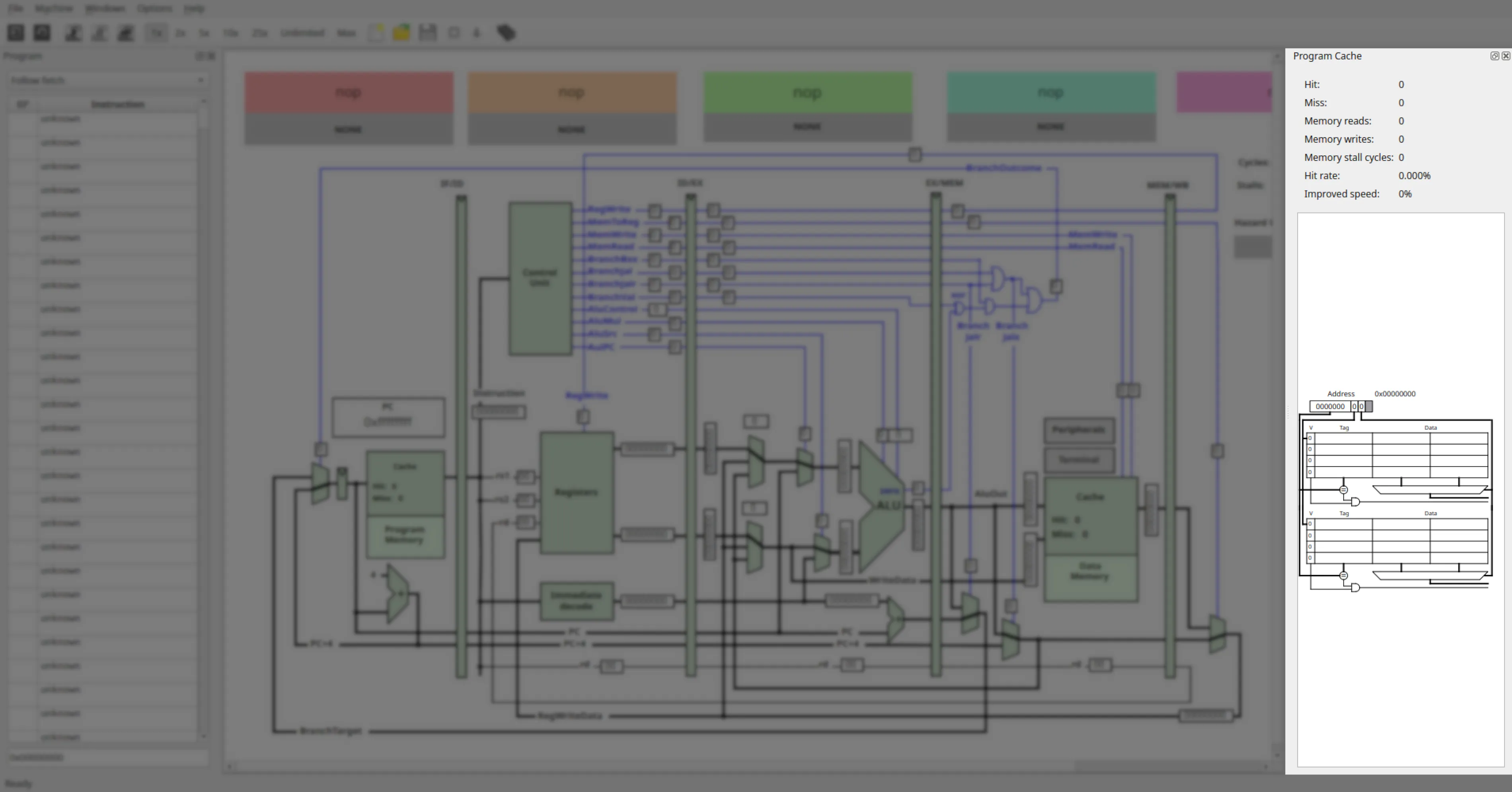
- Program Cache (Ctrl+Shift+P) – Instruction cache visualization (if enabled).
- Data Cache (Ctrl+Shift+M) – Data cache visualization (if enabled).
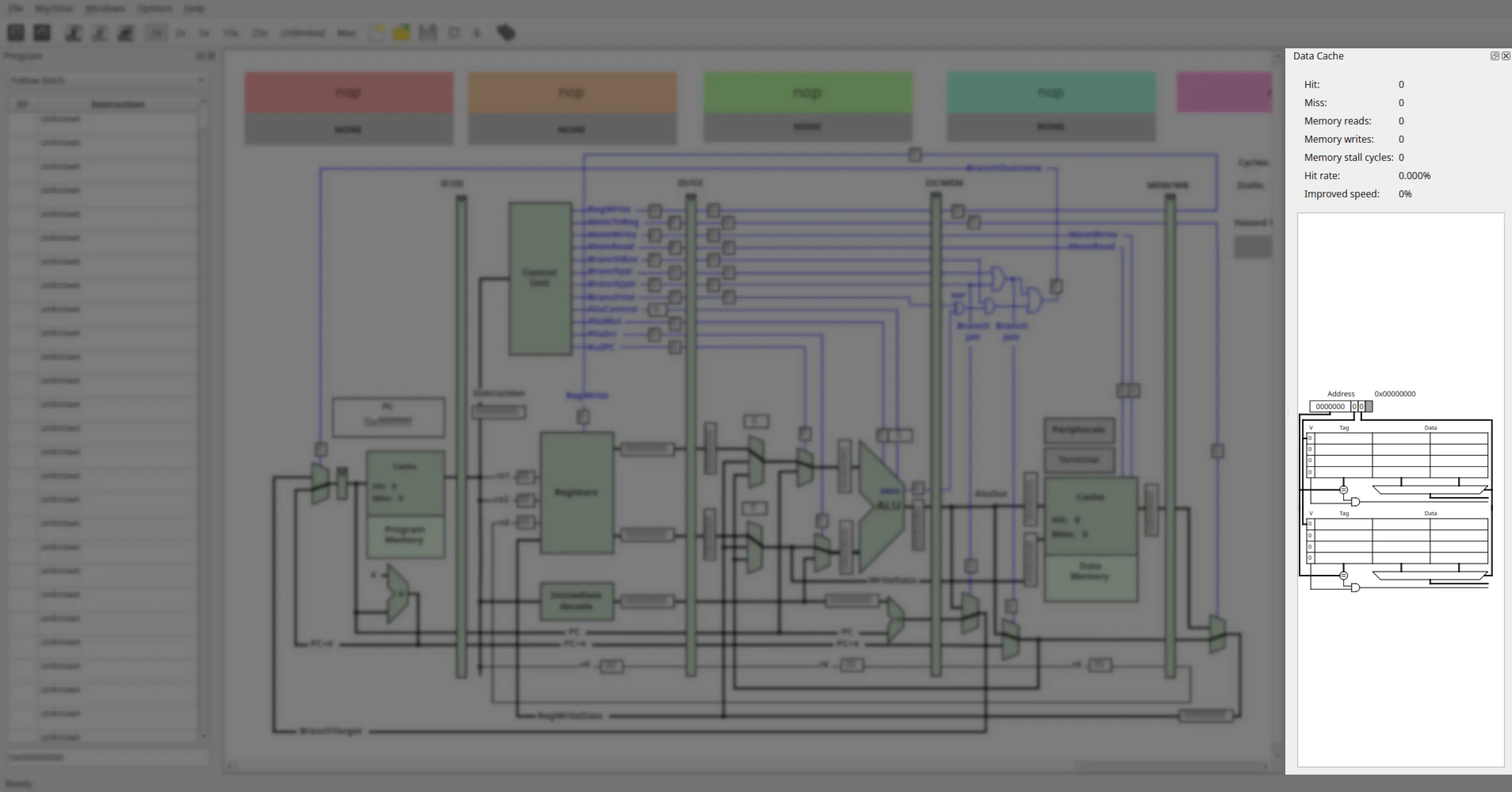
- L2 Cache – Second-level cache view (if enabled).
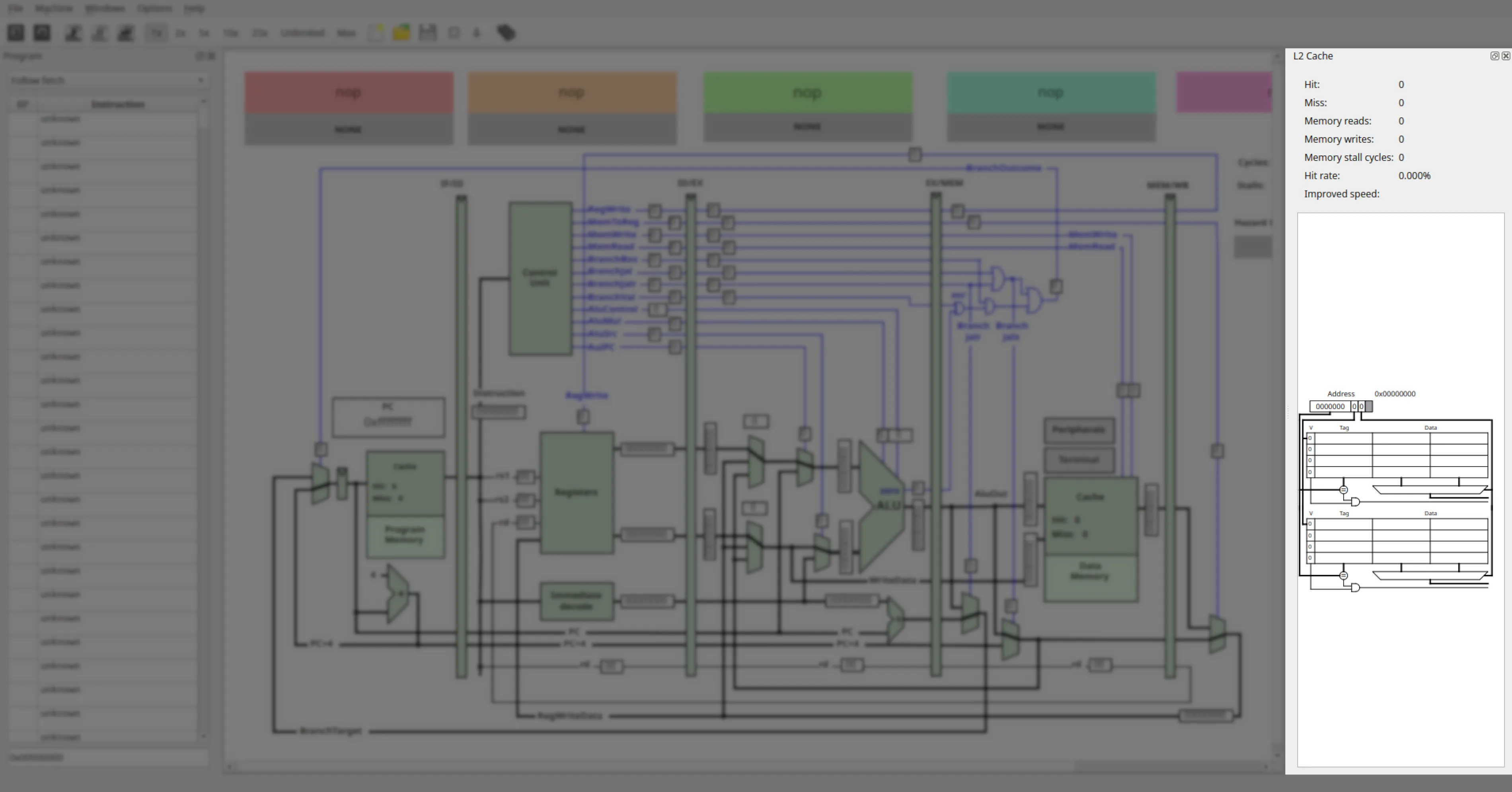
- Instruction TLB – Displays instruction TLB entries (if configured).
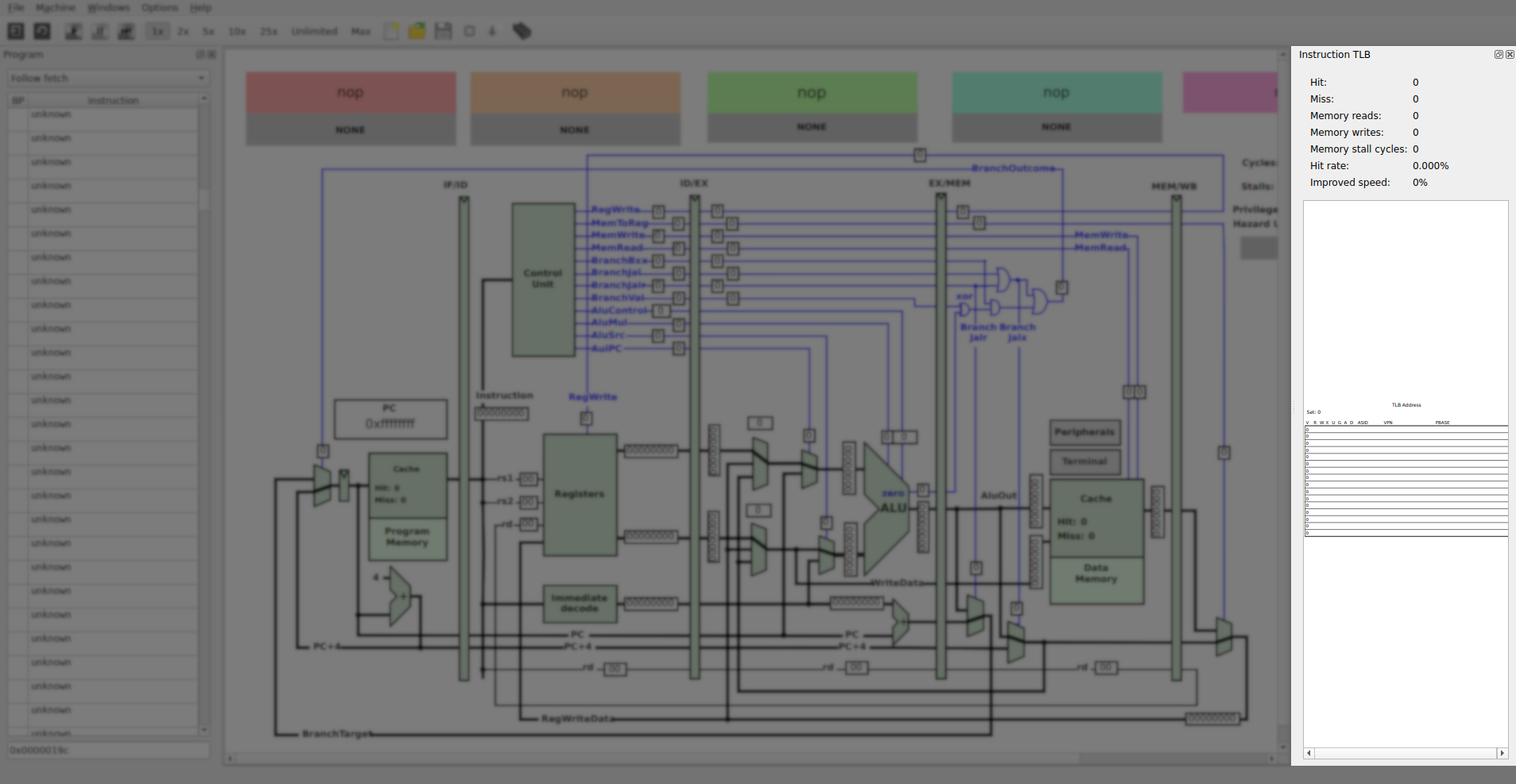
- Data TLB – Displays data TLB entries (if configured).
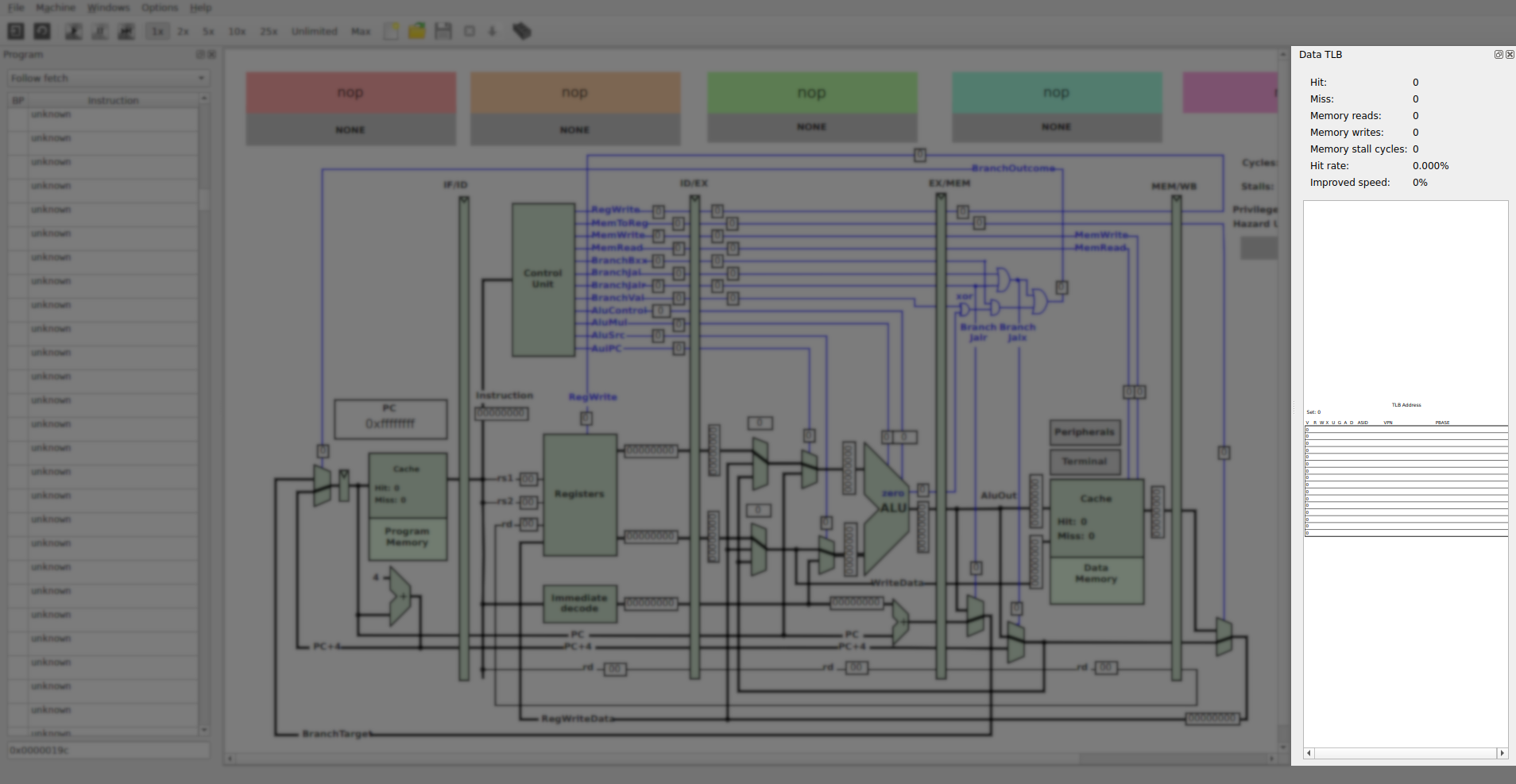
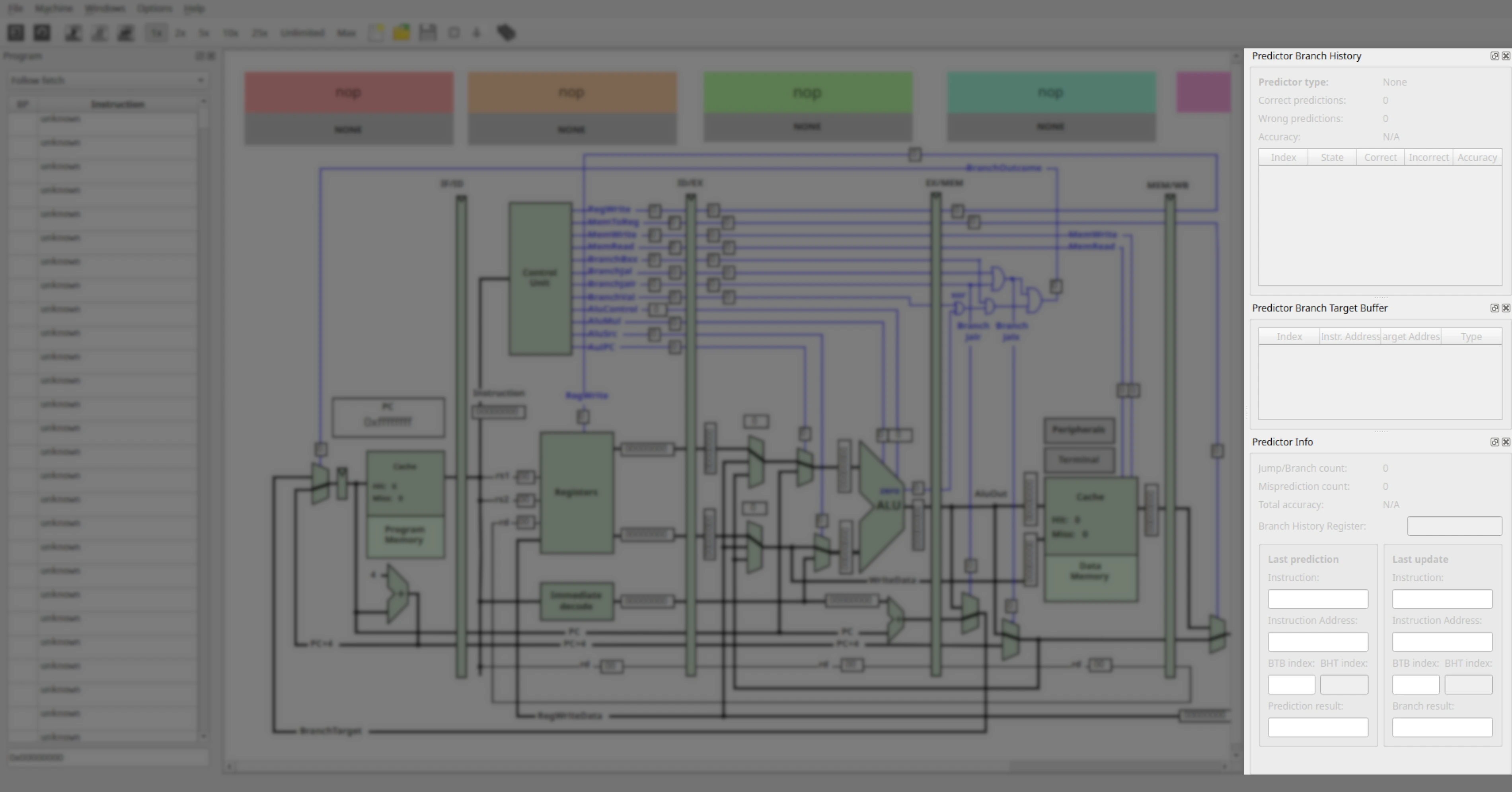
- Branch Predictor – Displays prediction tables and data (if configured).
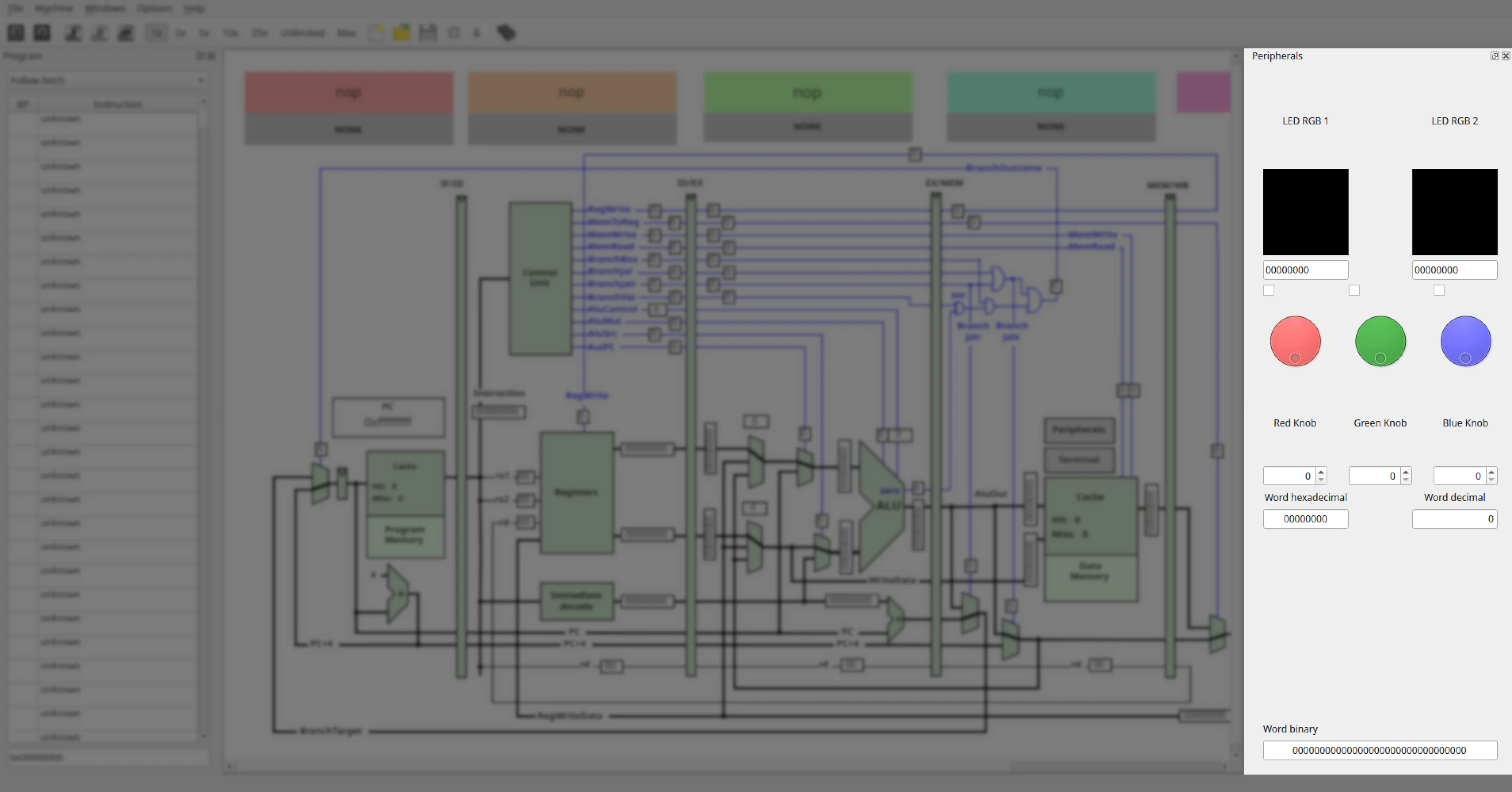
- Peripherals – Container for simulated I/O devices.
- Terminal – Simulated serial terminal.
- LCD Display – Simulated LCD.
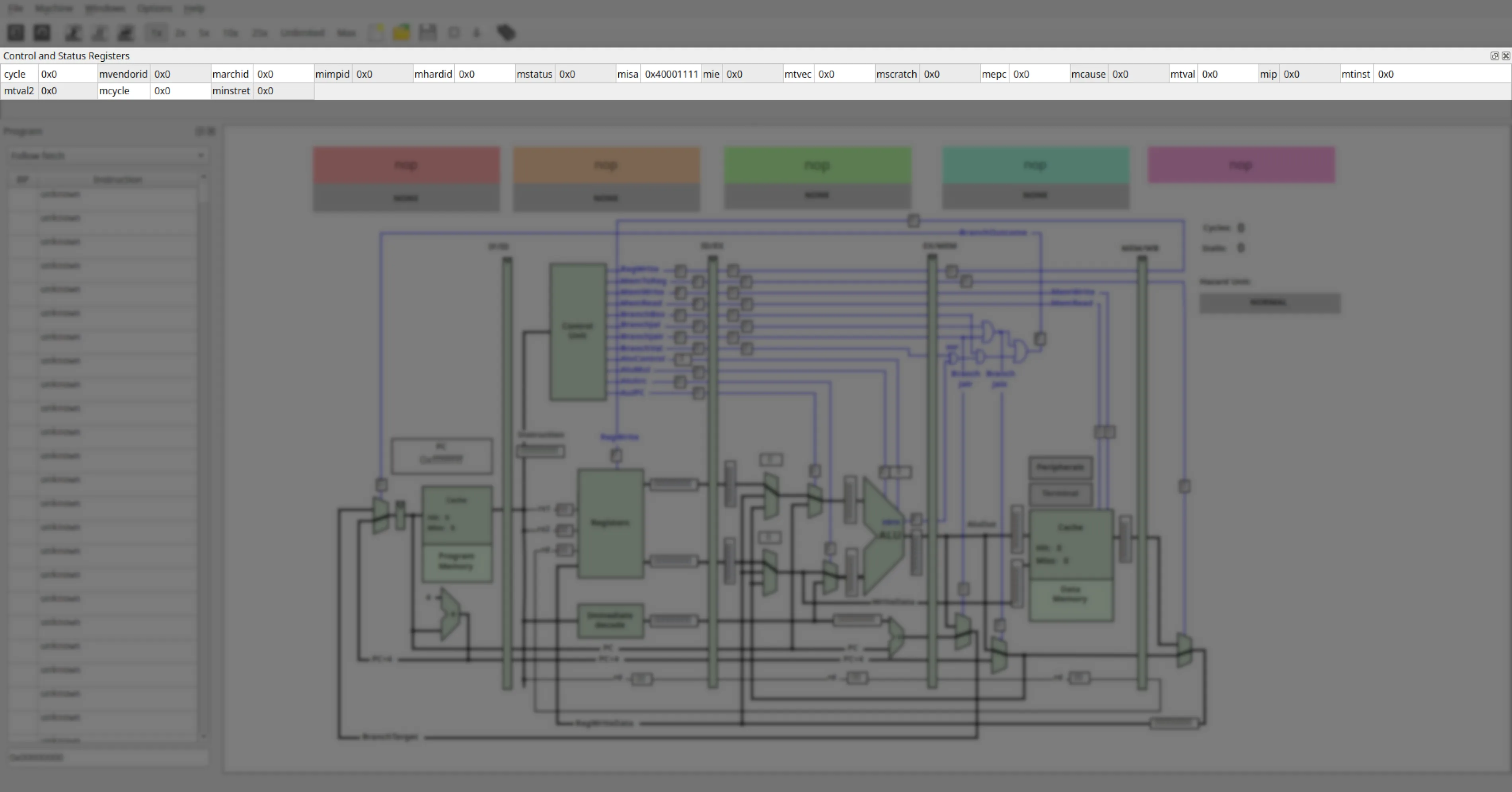
- Control and Status Registers (CSR) (Ctrl+I) – CSR panel.
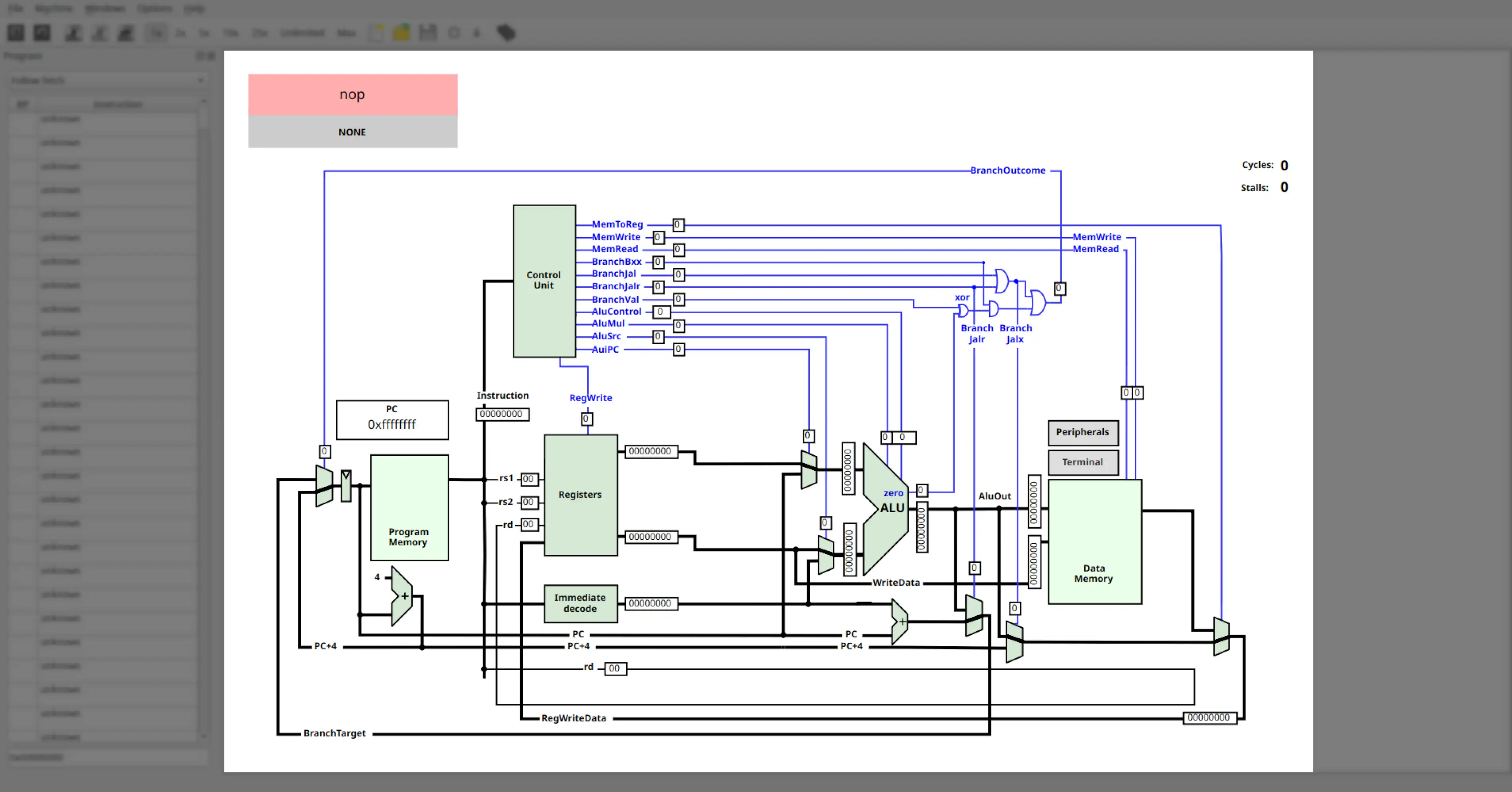
- Core View – Datapath visualization (CPU core).
- Messages – Log and feedback panel.
- Reset Windows – Restores all panels to their default positions.
Options Menu
- Show Line Numbers (checkbox) – Toggle line numbers in the code editor.
Help Menu
Provides information about QtRvSim, version details, and licensing.
Toolbar
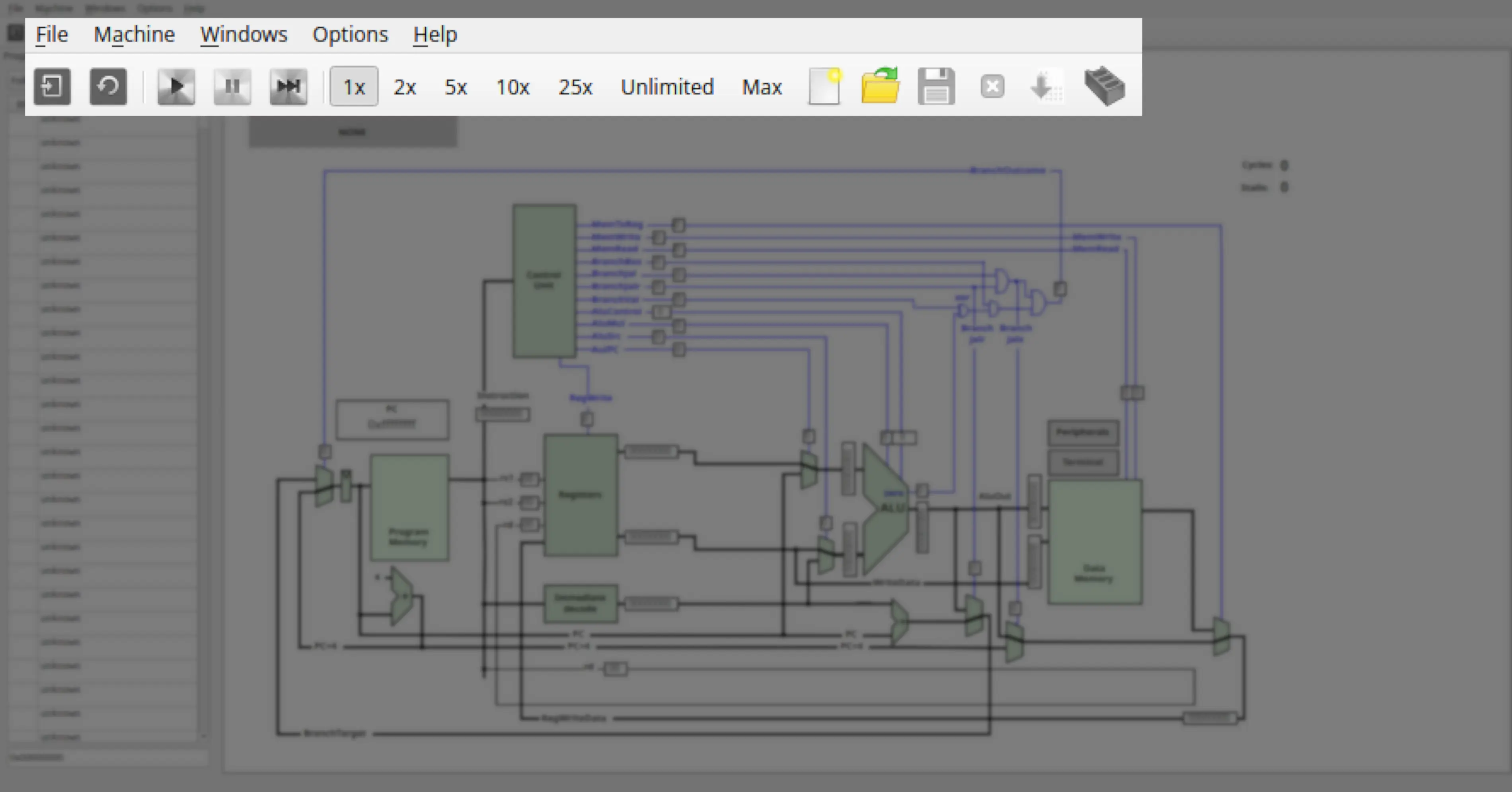
The toolbar provides quick access to frequently used actions:
- New Simulation – Equivalent to File → New simulation… (Ctrl+N).
- Reload – Resets simulator state (equivalent to Machine → Restart).
- Run – Start program execution (Ctrl+R).
- Pause – Pause execution (Ctrl+P).
- Step – Execute one instruction (Ctrl+T).
- Speed Controls – Select execution speed (same as Machine → Speed Controls).
- New Source – Open a new editor tab (Ctrl+F).
- Open Source – Load an existing
.sor.elffile (Ctrl+O). - Save Source – Save current file (Ctrl+S).
- Close Source – Close active code editor tab (Ctrl+W).
- Compile Source – Assemble current RISC-V program with the built-in assembler (Ctrl+E).
- Build Executable – Build ELF with external RISC-V toolchain (Ctrl+B).
Next Steps
The following sections introduce machine configuration options in QtRvSim, including cache, branch prediction, and virtual memory settings.
Users who are primarily interested in running simulations may skip this chapter and return later when advanced configuration is needed.